

.svg)
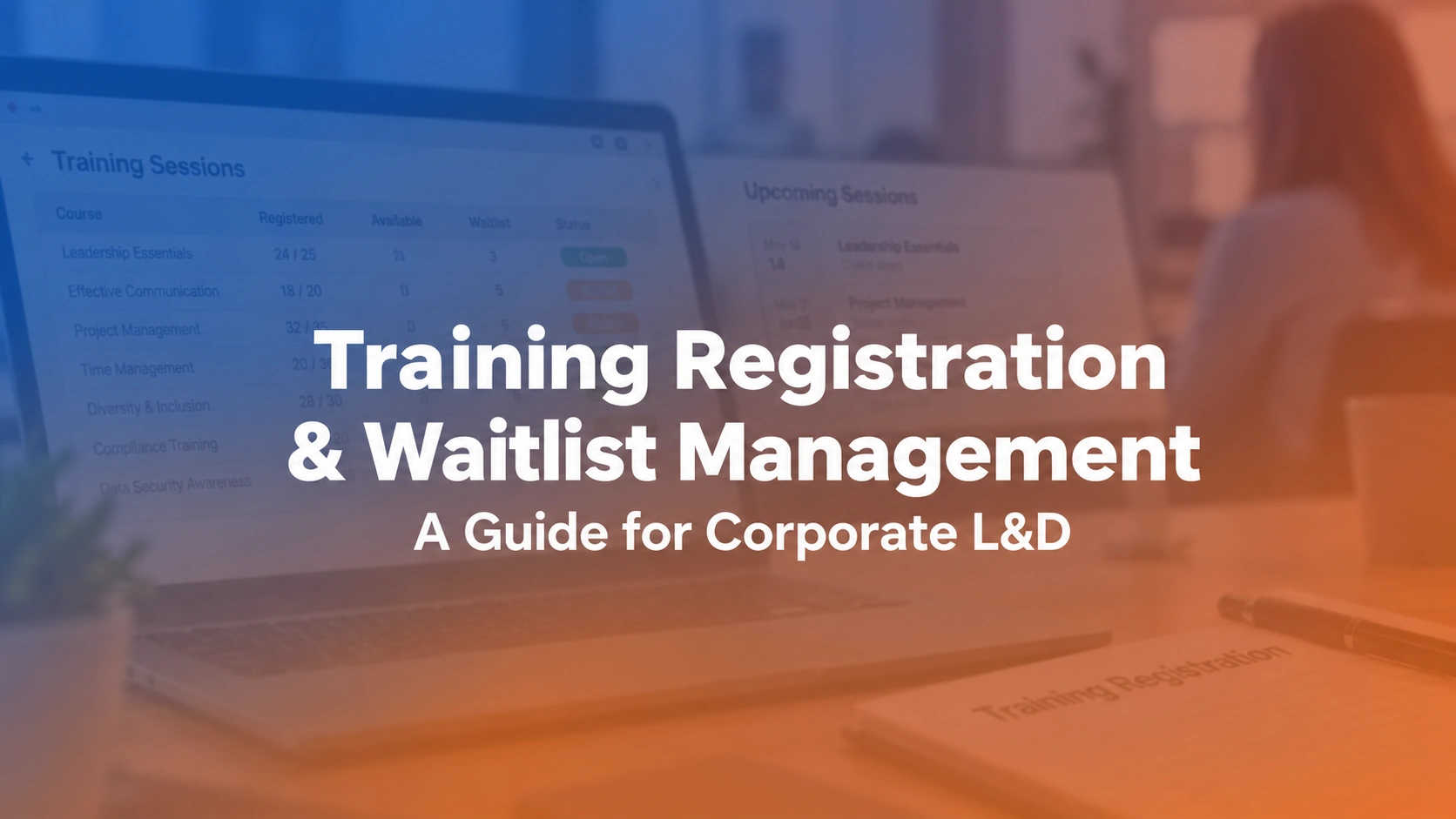

Training registration and waitlist management is the process of requesting, approving, allocating, and releasing seats in scheduled training sessions. A reliable process keeps a current roster, protects the approved seat limit, and gives every learner a clear status: confirmed, waitlisted, offered a seat, transferred, or canceled. The critical distinction is that requesting a place does not mean a place has been confirmed.
Consider a workshop with 25 seats and 34 requests. The instructor needs to know who is actually coming, not how many people clicked Register. An L&D coordinator needs a fair way to handle the nine additional requests, plus cancellations, prerequisites, and transfers. Here is a practical way to manage both tasks, using the accompanying Excel workbook or a training management system when the process becomes too busy for a shared file.
What are the essential training registration statuses?
Start with the status definitions below. They prevent the most common reporting mistake: mixing interested learners with people who have an allocated seat. Keep the session ID, course version, learner ID, request timestamp, latest status, and person who approved any manual change together.
| Enrollment state | When to use it | Owner's next action |
|---|---|---|
| Requested | Learner has asked for a seat | Check eligibility and session rules |
| Confirmed | A valid seat is allocated | Send joining details and record |
| Waitlisted | No eligible seat is available | Hold priority and notify about movement |
| Offered | A newly free seat is offered | Apply response deadline |
| Transferred | Seat moves to another session | Update both rosters |
| Canceled | Seat is returned | Trigger next eligible promotion |
How do you set up training registration and waitlist management?
Build the process around a specific session, not just a course title. An employee might take the same course at another time or site; each occurrence needs its own capacity, roster, trainer, location, and cutoff. For larger programs, separate the learner's course assignment from their confirmed seat in an individual session.
- Set the seat policy. Record maximum confirmed capacity, whether some seats are reserved, required prerequisites, approvers, and the registration closing time.
- Accept a request. Log the employee ID, course and session IDs, request time, and the chosen session. Do not call a request a confirmation.
- Check eligibility. Review mandatory-role priority, prerequisite completion, manager approval, and any reasonable access requirements using your published policy.
- Allocate or queue. Confirm only a seat that is genuinely available. Otherwise add the eligible learner to a dated waitlist and explain what will happen next.
- Communicate changes. Send different messages for confirmed, waitlisted, offered, transferred, and canceled registrations.
- Close the loop. Reconcile the roster with actual attendance after the session; move completed records to the approved learner recordkeeping workflow.
For the operational handoff, instructor management covers staffing responsibilities, while the instructor portal is relevant to instructor-facing session information. Decide who owns the final roster before choosing where it is displayed.
How do you calculate available training seats correctly?
Use this simple working formula: open seats = approved session capacity − confirmed seats − active reserved-seat holds. Count a reserved hold only if it really prevents another learner from taking the seat. Requests, expired offers, and waitlist entries do not count as confirmed seats; however, a temporarily held offer must be accounted for while it is valid.
Example: A session allows 25 learners. Twenty-three seats are confirmed and two are legitimately reserved for a mandatory-role group. There are zero open seats, although the number of confirmed registrations is still 23. If the holds expire, two seats become available for eligible people on the waitlist. With 34 total requests and 23 confirmations, the other 11 requests must be reconciled against reserved-seat policy, eligibility, cancellations, and the waitlist; they should never be silently labeled “confirmed.”
See training registration software for the related product workflow and events and sessions for the underlying scheduled-session concept.
When should an employee be put on a training waitlist?
Add a person to the waitlist only after checking that they qualify for the session and no allocable place remains under the current policy. Some organizations use first-come-first-served order; others publish priority rules for mandatory or regulated roles. Either can be workable if the rule is disclosed before registration and exceptions are documented.
Give the learner their status and a realistic expectation, not a promise of admission. Include the session date, the point when the waitlist closes, whether admission is automatic or requires a response, and how to withdraw. For a compulsory safety session, the coordinator may also need to arrange another course date rather than leave people indefinitely in a queue.
The right session cutoff belongs alongside the training calendar and ILT/VILT administration process so instructors are not left planning against an old roster.
How should a released seat be offered to the next learner?
There are two reasonable approaches: automatic promotion to a confirmed seat, or a time-limited offer that the learner must accept. They are not interchangeable. Automatic promotion is simpler when employees have already committed to the session. An offer is safer when travel, shifts, or approvals may have changed.
For example, at 10:00 a.m. a confirmed employee cancels. The next eligible learner receives an offer that expires at 4:00 p.m. If accepted, the seat is confirmed and the roster and joining instructions change together. If declined or expired, release the hold and contact the next qualified learner. The six-hour window is just an operational example—not a legal or industry-standard deadline.
Prevent double booking: two coordinators should not be able to confirm the same last seat. In Excel, assign one registration owner and reconcile before sending confirmations. For software, ask the vendor to show an actual simultaneous-promotion test. Track the offered timestamp, acceptance deadline, response, and final registrar, rather than overwriting earlier events.
For documented implementations of these different approaches, see Gainsight's instructor-led waitlist guidance and California State University Fullerton's standard versus smart waitlist instructions. Platform behavior varies; neither example defines a universal policy.
Which registration fields should you collect?
Keep forms short enough to complete quickly: learner ID, course/session, department or work location where relevant, required approval, eligibility decision, and a working notification channel. Use the approved employee directory for identity rather than duplicating personal information. Collect accommodation requests through an authorized private route instead of putting medical details or sensitive notes on a broadly shared roster.
Before integrating forms, define who can read, edit, export, or delete registration data and what happens when someone is transferred or leaves the company. Training operations software and training task management are adjacent areas; your privacy, approval, and retention rules still need to be established by the organization.
When training registration and waitlist management spans multiple sessions, ask Trainery to demonstrate the exact approval, enrollment, instructor or reporting exception your team needs to manage.
How should you handle cancellations, transfers, and no-shows?
A cancellation releases a confirmed seat. A transfer closes one session registration and opens a linked registration for a different session. A no-show is an attendance outcome determined after the scheduled delivery—not a type of pre-class cancellation. Keeping these events separate protects both learner records and planning statistics.
Suppose a learner moves from Monday to Thursday, then attends Thursday's class. Monday should show a transfer-out or canceled registration, Thursday should show the confirmed seat and verified attendance, and the learner's course assignment should not show two completions. Refer to the instructor-led training operations guide or ILT versus VILT comparison when the delivery format changes.
What emails and reminders should registration workflows send?
A confirmation email should answer the questions a learner would otherwise send back to the coordinator: Am I confirmed? When and where is it? What do I need before joining? How can I cancel or reschedule? Include the course, exact session date, time zone, venue or meeting link, prerequisites, cancellation cutoff, and support contact.
Waitlisted people should receive a different message: their position or priority policy if appropriate, whether an offer is required, and the next update date. A learner who transferred to another cohort should not keep receiving the former cohort's meeting link. Check the current status immediately before any bulk reminder. For virtual joining arrangements, see VILT delivery practices and the training administration buyer's guide.
Which registration KPIs matter for L&D teams?
Do not put every percentage under the label “attendance.” Seat fill rate describes capacity use before delivery; attendance rate describes how many confirmed learners actually came. For a 25-seat session with 20 confirmations and 16 attendees, seat fill is 80%, and attendance among confirmed learners is also 80%. They happen to match in this example, but measure different things.
| Metric | Calculation | Example |
|---|---|---|
| Seat fill rate | Confirmed seats / available seats | 20 / 25 = 80% |
| Attendance rate | Attendees / confirmed registrations | 16 / 20 = 80% |
| Waitlist offer acceptance | Accepted offers / delivered seat offers | 3 / 4 = 75% |
| No-show rate | Confirmed learners absent / confirmed registrations | 4 / 20 = 20% |
Calculate by session, location, and program rather than averaging percentages from a tiny group and a large cohort equally. Separate completed sessions from future sessions, and review late cancellations and offer-response times alongside the metrics. See the training scheduling software comparison and training management systems comparison for technology evaluation context.
Is an Excel registration tracker enough, or do you need a TMS?
Excel can work well for occasional classes with one owner and a stable roster. This article's workbook is a planning and tracking aid; it does not automatically reserve seats, send notifications, or enforce simultaneous changes. If two coordinators regularly work the same waiting list, multiple locations exchange seats, or approvals depend on different roles, it becomes harder to know whether a spreadsheet still represents the true roster.
Ask a vendor to demonstrate three realistic changes: a learner cancels a fully booked session, two qualified people are on the waiting list, and an instructor changes the room capacity. Can the team see the new seat count, preserved priority order, outgoing notifications, and full event history in one place? Compare the outcome against your existing spreadsheet rather than only reviewing polished registration screens. See training management system for the relevant product category.
Checklist: what should you verify before the next session opens?
- Capacity: Approved seats, reserved holds, cutoff and waitlist limit are documented.
- Eligibility: Prerequisites, manager approvals and priority rules are explicit.
- Ownership: One coordinator owns the authoritative roster and exceptional changes.
- Messages: Confirmation, waitlist, offer, cancellation and transfer notifications are distinct.
- Evidence: Request time, seat allocation, override reason and final response can be retrieved.
- Reconciliation: Registration records can be tied to verified attendance after delivery.
Keep this checklist beside the workbook, not only in a policy deck. A short dry run—one routine registration, one fully booked class, and one expired seat offer—will expose most confusing handoffs before learners encounter them. When deciding which classes to offer, training needs analysis and training ROI measurement answer different planning questions.
What should a training manager ask during a software demo?
Bring a real (anonymized) scenario and ask the presenter to run it from start to finish. Specifically ask: How are reserved places released? Who can change queue priority, and where is the reason stored? Can a person accept an offer after it has expired? How are canceled, transferred, and attended learners reported separately? How is employee information access-controlled?
These are buyer questions, not claims that any one product automatically performs every step. If the vendor cannot reproduce your most common exception in the demo, follow up with a configuration or implementation assessment before treating the feature as available.
Conclusion: keep the roster accurate, not just full
A registration page is only the start. Training registration and waitlist management succeeds when your team can explain who has a seat, why they received it, which requests are still waiting, and what changed after cancellation or transfer. Begin with the Excel tracker and one clear owner. When manual checks start delaying confirmations or creating seat disputes, evaluate a connected training workflow against those exact problems.
For the broader buying decision, refer to the training management system comparison and ask the team to show your most difficult enrollment exception.
Explore how TraineryTMS supports instructor-led training scheduling, session administration and related learner records. Bring a difficult real-world scenario to the demonstration.
Book a DemoDownload your workbook
Enter your name and work email to unlock the Excel file.



.svg)

.svg)
.svg)

